Manik Agra
Google SketchUp Tutorial
 Here I apply the use of Follow Me and Push Pull tool in drawing door frame and leaf. This way will produce door frame and leaf drawing quickly.
In principle, you draw a section of the door frame and leaf. Then create a path or trajectory that will shape the finished picture. Apply the Follow Me tool on the object to follow the path that has been made. At the door, use the Push Pull tool to pull up exactly to the frame surface.
To be more...
Here I apply the use of Follow Me and Push Pull tool in drawing door frame and leaf. This way will produce door frame and leaf drawing quickly.
In principle, you draw a section of the door frame and leaf. Then create a path or trajectory that will shape the finished picture. Apply the Follow Me tool on the object to follow the path that has been made. At the door, use the Push Pull tool to pull up exactly to the frame surface.
To be more...
Manik Agra
Google SketchUp Tutorial
 Google SketchUp can import CAD drawing files (*. dwg) so that the overall drawing process becomes faster.
I find this feature in Google SketchUp 7 and no longer exists in version 8. With this feature you can import .dwg CAD (Computer Aided Design) drawing with good and the results are "snap".
Import results from Google SketchUp 7 resulted in exactly with the original drawings on CAD software, including the units….. as long as it...
Google SketchUp can import CAD drawing files (*. dwg) so that the overall drawing process becomes faster.
I find this feature in Google SketchUp 7 and no longer exists in version 8. With this feature you can import .dwg CAD (Computer Aided Design) drawing with good and the results are "snap".
Import results from Google SketchUp 7 resulted in exactly with the original drawings on CAD software, including the units….. as long as it...
Manik Agra
Google SketchUp Tutorial
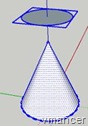 In this way the most complicated Google SketchUp Tutorial than others. Even with experience may rarely use this method to create a truncated cone.
Much easier to use the Follow Me tool or Scale tool method.
To use this method, you must set up cones and one other field. Create a group for that field. Then use these fields to cut off part of the cone. For clarity, please refer to the following Google Sketchup interactive tutorial. Please...
In this way the most complicated Google SketchUp Tutorial than others. Even with experience may rarely use this method to create a truncated cone.
Much easier to use the Follow Me tool or Scale tool method.
To use this method, you must set up cones and one other field. Create a group for that field. Then use these fields to cut off part of the cone. For clarity, please refer to the following Google Sketchup interactive tutorial. Please...
Manik Agra
Google SketchUp Tutorial
 This Google SketchUp Tutorial is a continuation of Make a truncated cone (the first way).
Now I show how to create a truncated cone in other way, use Follow Me tool to create a truncated cone. Should be prepared a trapezoid and a circle as shown in the picture.
For more clearly, follow the interactive tutorial below. Please note, because it is an interactive tutorial so you need to click the Play/Next button (and following button)...
This Google SketchUp Tutorial is a continuation of Make a truncated cone (the first way).
Now I show how to create a truncated cone in other way, use Follow Me tool to create a truncated cone. Should be prepared a trapezoid and a circle as shown in the picture.
For more clearly, follow the interactive tutorial below. Please note, because it is an interactive tutorial so you need to click the Play/Next button (and following button)...
